Online - nothing to install - early access

Play ICAONAV online

Open a session as the controller, share the nine-digit code, and your pilots fly the Swiss ICAO chart from any browser.

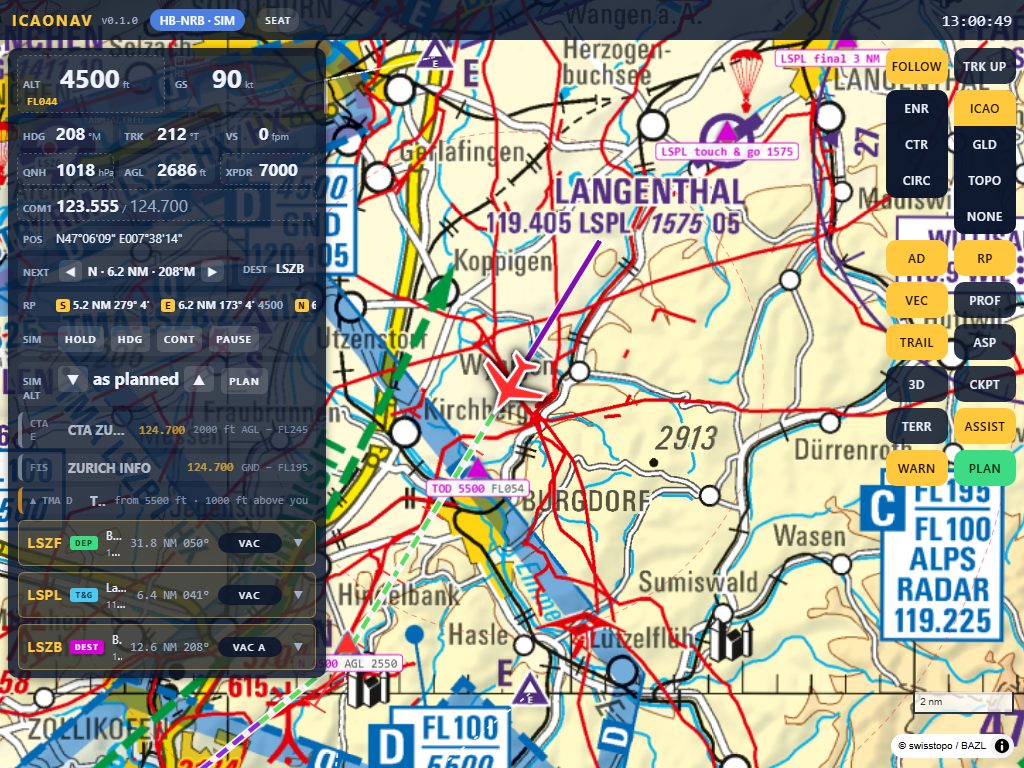
The pilot page at iPad landscape size: ICAO chart, instrument panel and the map controls
The pilot page on an iPad, opened from the browser: no app, no PC at home.

Sessions online now

Public sessions on online-1.icaonav.com, refreshed every 10 seconds. JOIN opens the session in a new tab and seats you as a pilot; pick a callsign and a plan and you are in the air.

SessionControllerPilotsRunning sinceTime leftJoin
Looking for sessions…

How it works

The online server at online-1.icaonav.com runs the ICAONAV practice game in the browser: nothing to install, on an iPad, a phone or a laptop. Every session has a 9-digit code. A controller opens a session and shares the code or the join link (the top bar also shows it as a QR code); the pilots enter the code in the seat dialog and fly in the same airspace, each with their own simulated flight.

Without a code, "play alone" gives you a private session with your own simulated flight, the airspace warnings and the suggested radio calls, as in the standalone game. Public sessions appear in the table above; a private one is reachable only with its code.
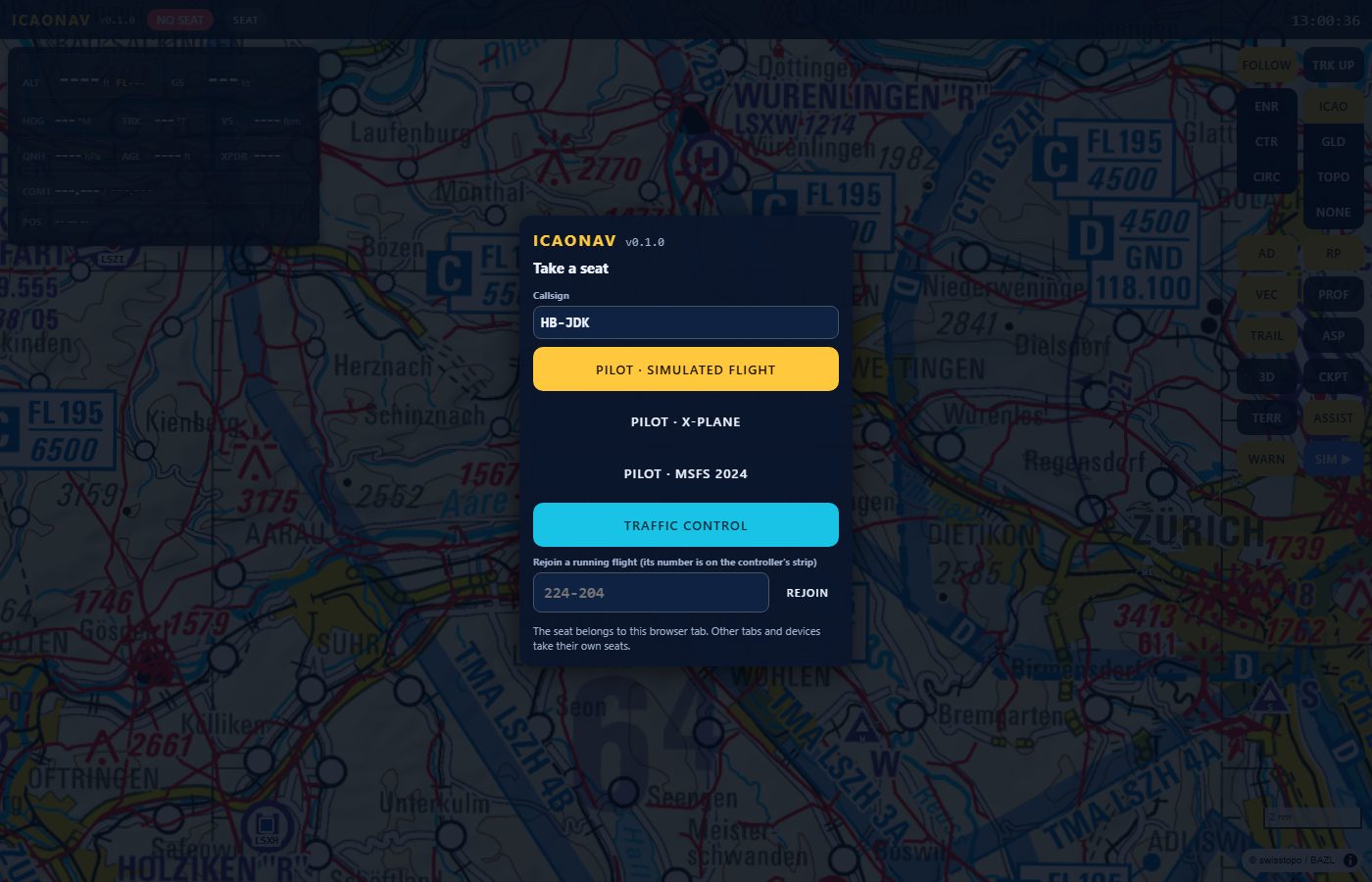
The Take a seat dialog of the Windows app: callsign field and the buttons Pilot - simulated flight, Pilot - X-Plane, Pilot - MSFS 2024, Traffic control, and rejoin by flight number
The seat dialog (Windows app shown). Online, the simulator buttons give way to a session block: new session, join with code, play alone.
  1. Open a session. On the online server take "Traffic control": the top bar shows the session code, the controller id and a QR code.
  2. Share the code or the link. By message, on screen or as the QR code; the link fills the code in for the pilot.
  3. Pilots join. Each pilot enters the code (or clicks JOIN above), takes "Pilot · simulated flight" with a callsign and a plan, and calls in.

The controller's seat

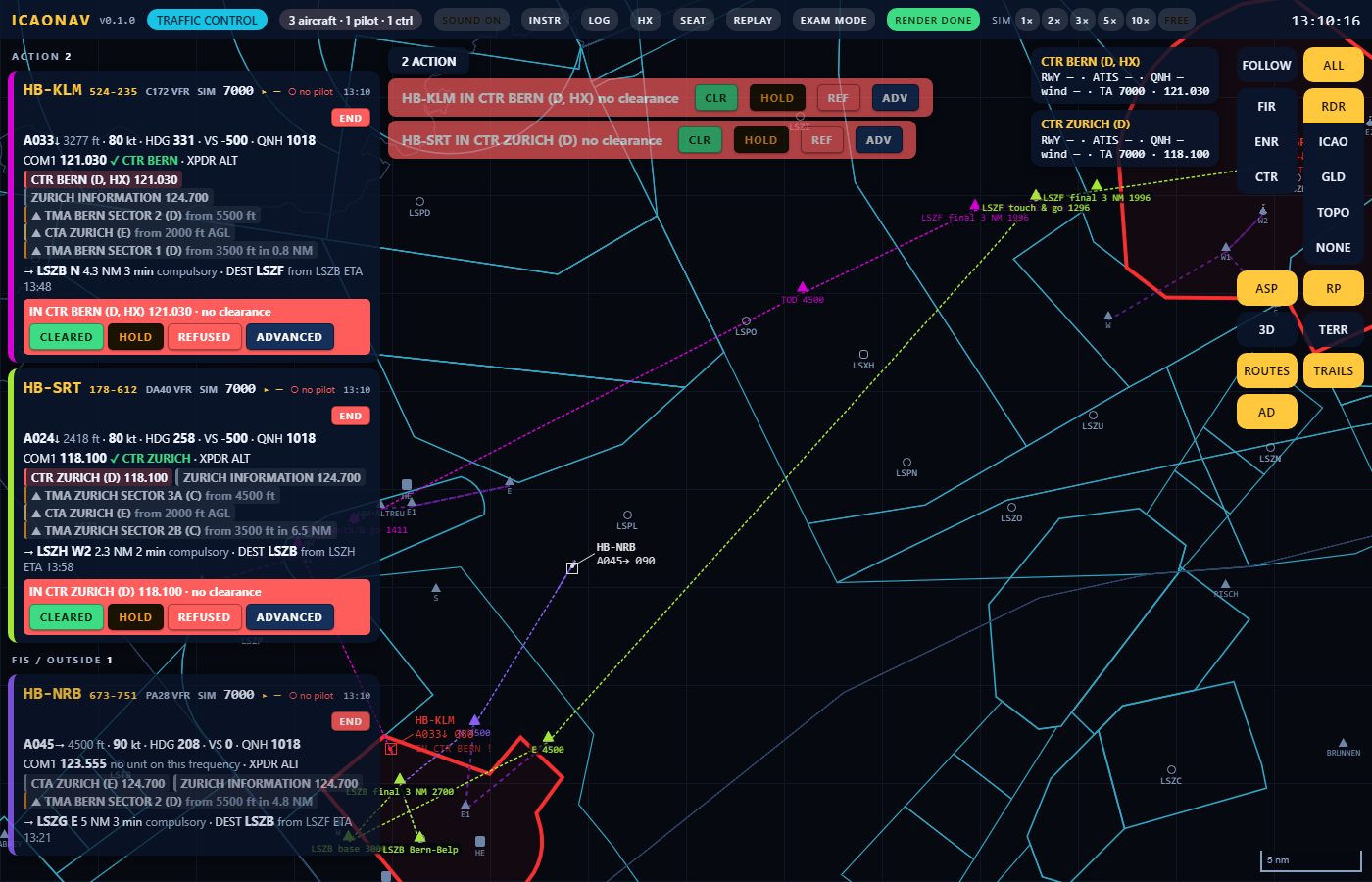
The controller page is the one of the Windows app: a flight strip per aircraft, warnings before an aircraft enters a CTR, TMA or FIZ, quick CLEARED / HOLD / REFUSED and the advanced clearance editor in standard phraseology, scenario cards (runway, ATIS, QNH, wind), traffic information, the event log and the radar view.

Only the person who opened the session controls it. The controller id in the top bar lets you rejoin your own session after a reload or from another device; nobody else takes the seat without it.

The controller page in radar mode: three flight strips on the left, two of them with a red warning and the buttons CLEARED, HOLD, REFUSED, ADVANCED; radar symbols with data blocks and cyan airspace outlines on a dark map
The controller seat online: strips, clearances and the radar view, the same page as in the Windows app.

Voice with push-to-talk

A session has one voice channel: the controller talks to everyone and everyone hears everyone, one frequency for the whole session. Hold the PTT button to talk, release it to listen; the microphone is open only while the button is held. It works in the browser with the microphone permission, on the iPad as well as on a laptop; a headset avoids echo.

The pilot page still shows which unit to call and on which frequency, and proposes the call in standard phraseology; the voice channel is where you say it.

Limits

  • A session ends when its controller ends it, after 6 hours, or after 30 minutes without the controller.
  • Up to 8 pilots per session.
  • The server holds a limited number of sessions at a time; if it is full, try again a little later or play alone.
  • Early access: the server may change between days.

What is not online

  • No simulator link. X-Plane 12 and MSFS 2024/2020 need the Windows app on the simulator PC: see Flight Simulators.
  • No exam mode. Recording and replay are part of the exam kit for the Windows app.
  • No aerodrome documents (VAC, AD INFO from the eVFR Manual) unless enabled by the operator of the server; they are licensed content. The chart, the reporting points and the frequencies are there.

Fair use and privacy

  • No accounts. A callsign is all you enter.
  • No recordings. Voice is relayed live and not stored; the server keeps only what it needs to run the sessions.
  • Be civil on the frequency. It is a shared channel for radio practice: keep it short, keep it in phraseology, and let the controller lead.

Open the online server

Take a seat as a pilot in a public session, play alone, or open a session of your own as the controller: the seat dialog does the rest.

Open the online server Start a session as controller

Prefer your own PC and LAN? The Windows app runs the same game at home: Standalone. Not for real navigation.